

Coming Soon
Coming Soon
Overview
The Add to Calendar feature is a new preset in the HPC that allows for a rail to display 16x6 thumbnails to promote and market upcoming events. This feature provides users with the ability to seamlessly add events and programs to their personal calendars from their mobile devices or tablets, while also offering different content type functionalities for enhanced user engagement across all platforms.
Creating an Coming Soon Asset
Navigate to the Media Library in Backstage
Click "New Media" in the top right corner
Select "Add to Calendar" from the dropdown menu
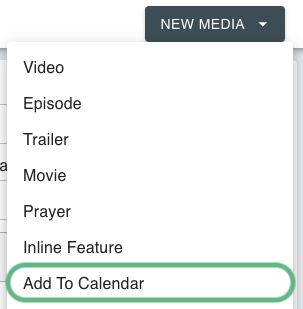
Complete the required fields:
Title: Enter the name of the event as it will appear in the user's calendar and in the Coming Soon rail
Description: Enter details about the event (this will be displayed in the calendar entry and system)
Thumbnail: Upload an image that will serve as a visual reference in the app
Start Date & Time: Enter the event start date and time when the event will be available
End Date & Time: Enter the event end date and time (this could be 60 minutes after the start, or the exact duration)
NOTE: The Time and Date must be in Central Time (CT). Incorrect time zone formats may result in calendar entries appearing at unexpected times for users.
Required Thumbnail Image Keys
In order to properly use this feature, the following image keys are required:
Platform
Image Key
All Platforms
imgComingSoon16x6
CTV, Roku
imgInlineFeature16x9_QR
NOTE: imgInlineFeature16x9_QR is only required if using the Content Type of Link

Content Type Functionality
The user experience will vary depending on the Content type selected for the Asset in the Coming Soon rail. Please refer to the table below for how each Content type changes the user experience:
Link (Mobile/Tablet)
User clicks on the thumbnail in the Coming Soon Rail they will be redirected to an attached Link in the device browser.
Link (CTV/Roku)
User clicks on the thumbnail in the Coming Soon Rail and they will be taken to the imgInlineFeature16x9_QR landing page graphic.
Trailer
User clicks on the thumbnail in the Coming Soon Rail and they will be taken to a video player to watch the attached Trailer.
NOTE: When using the Link Content type, a destination URL must be added into the
Link Destinationfield under Additional Information.
Last updated