

Highlight Rails
Overview
Highlight Rails enable users to curate and showcase selected playlists alongside series content. This feature allows content managers to display up to three "highlight" playlists below an episode, such as "Best of" collections, related content, or themed selections. Highlight Rails enhance the viewer experience by providing easy access to curated content that complements what they're currently watching.
Adding Highlight Rails to a Playlist
Navigate to Playlists in Backstage
Search for an existing playlist type or create a new one:
To create a new Series playlist, click "New Playlist" in the top right corner
Select "Series" from the playlist type dropdown menu
Complete the required fields for the Series playlist
Under the "Additional Information" section, locate the Highlight Rails fields:
Enter the
playlistIdof the first highlighted playlist you want to displayIf desired, enter up to two additional
playlistIdvalues for second and third highlight rails
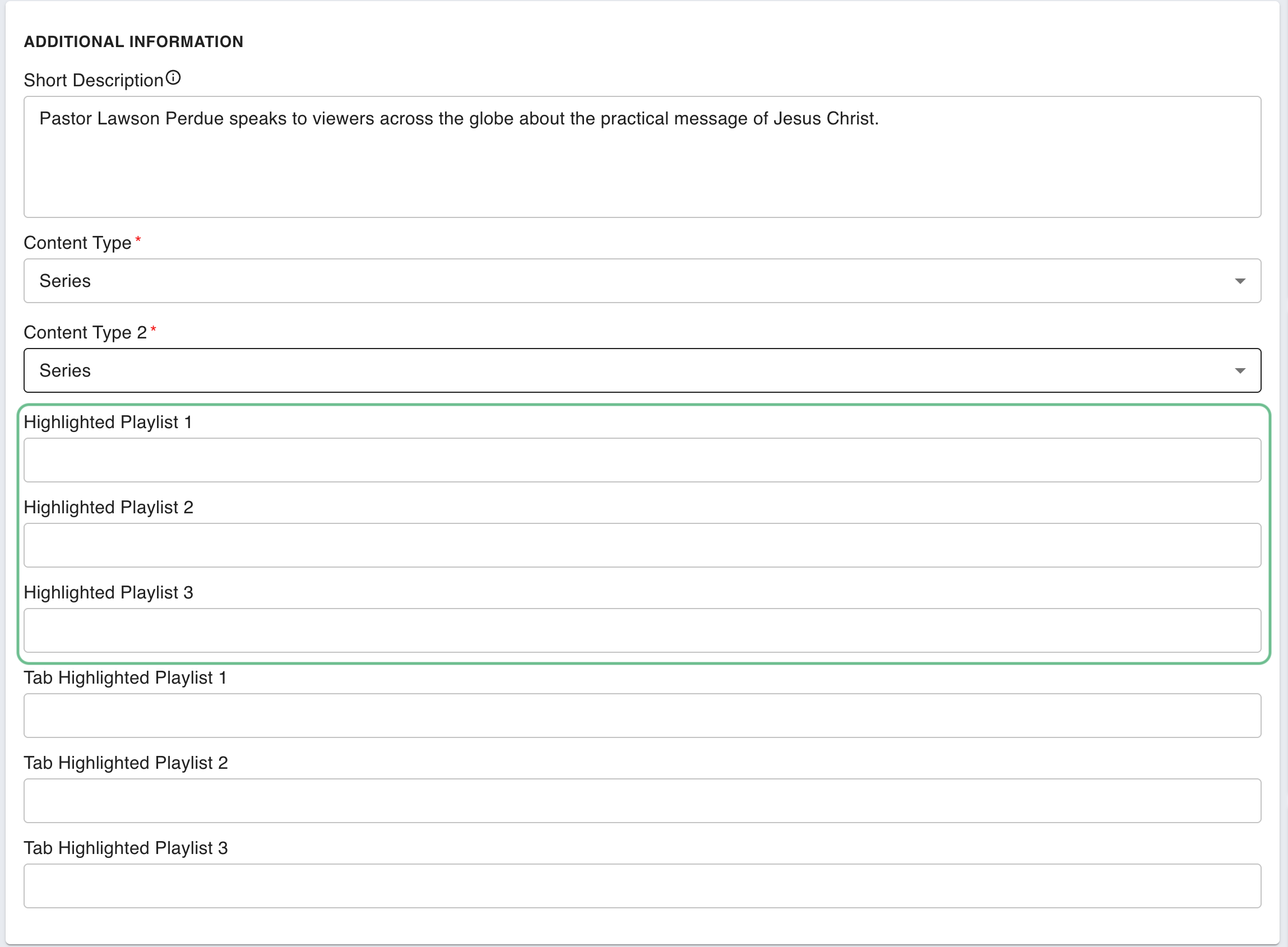
To modify which playlists appear in your Highlight Rails:
Navigate to the Series playlist that needs modification
Open the playlist for editing
Update the
Highlighted Playlistvalue in the "Additional Information" sectionClick "Save and Publish" to apply your changes
NOTE: Up to three Highlight Rails can be displayed simultaneously. If you need to remove a Highlight Rail, simply clear the corresponding
playlistId.
Example Highlight Rails


Last updated