

Web Links
Overview
Web links enable users to seamlessly access external sites from their mobile devices or tablets. This feature provides convenient access to information or content that may not be easily hosted within the app itself.
Creating a Web Link
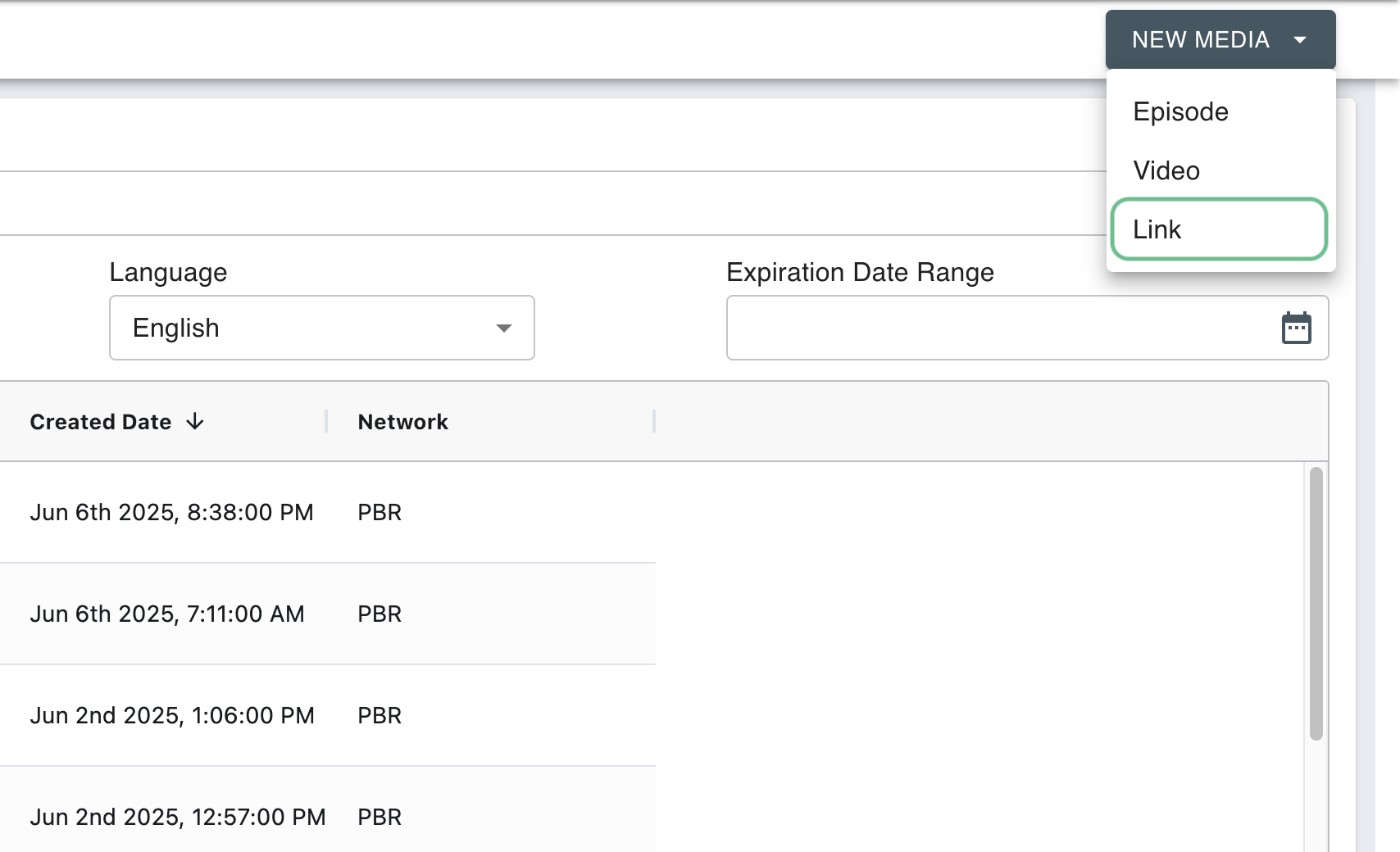
Navigate to the Media Library in Backstage. Click "New Media" in the top right corner and select Link
Enter the name of the link label as the Title for the asset, this will be what displays on the app for the user to press on to redirect out.
A video asset will need to be uploaded to act as a placeholder, this video asset will not be displayed on the App. Additionally, while Description is required, it also will not be displayed
Required Field and Image Keys
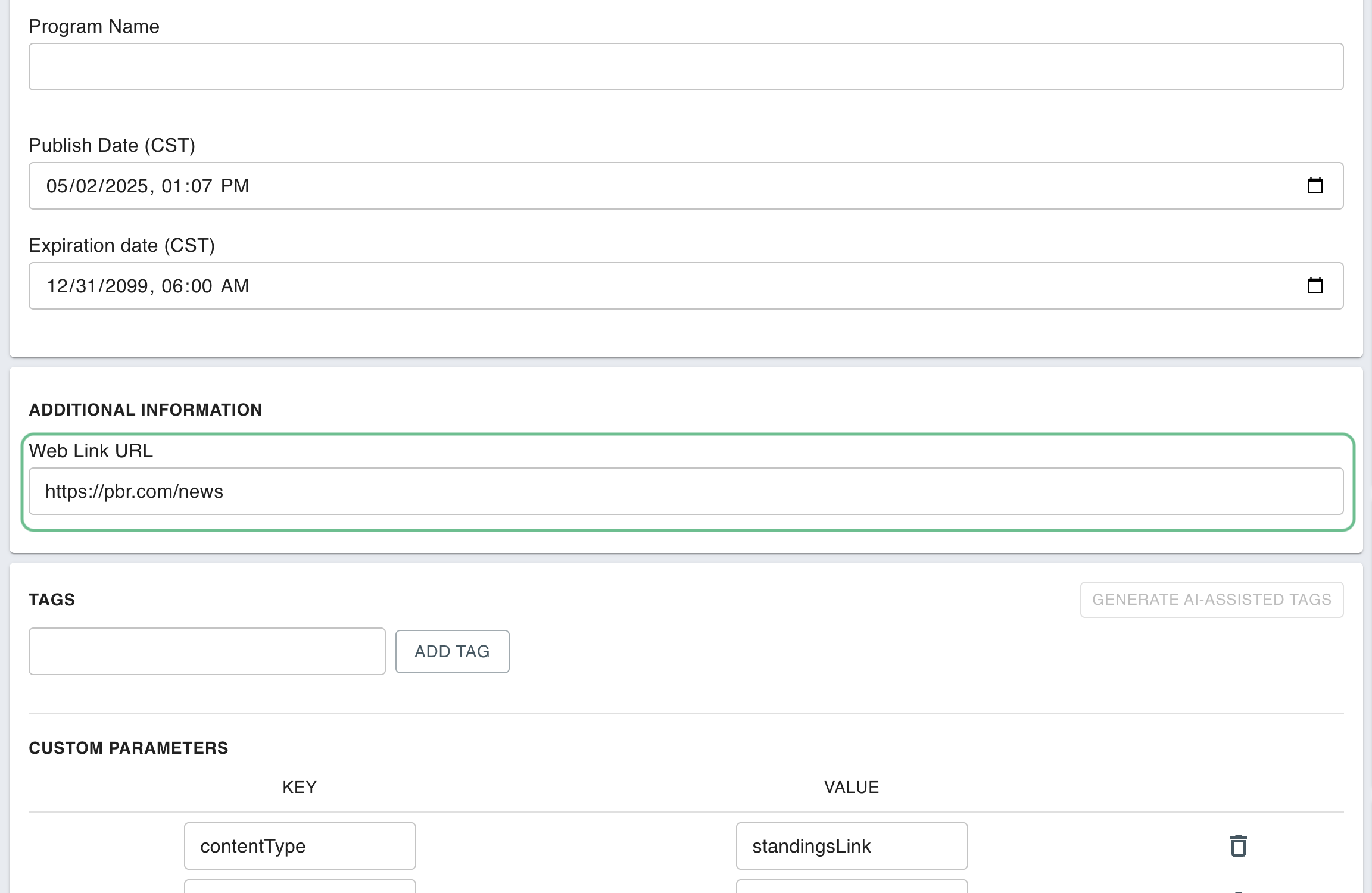
In order to properly use the Web Link, a destination URL must be added into the Web Link URL field under Additional Information. This link will be the destination the Mobile/Tablet feature redirects to.
Overview
Web links enable users to seamlessly access external websites and resources from within their mobile devices or tablets. This feature provides convenient access to information or content that may not be natively hosted within the app itself, such as results pages, external resources, or web-based tools.
Creating a Web Link
Navigate to the Media Library in Backstage
Click "New Media" in the top right corner
Select "Link" from the dropdown menu
Complete the required fields:
Title: Enter the text you want displayed as the clickable link in the appDescription: While required, this information won't be displayed to usersVideo Asset: Upload a placeholder video - this won't be displayed in the appWeb Link URL: Enter the destination URL in the "Web Link URL" field
NOTE: The Web Link URL field is critical as it defines where users will be redirected when they tap the link in the app.
Adding a Web Link to Your App
To make your web link available to users:
Add the Link Asset to the Web Links Playlist
Arrange links in your desired order within the manual playlist
This ordering will directly reflect how links appear in the app
Editing an Existing Web Link
To update a web link that's already been created:
Navigate to the Link asset that needs modification in the Media Library
Open the asset for editing
Update the destination URL in the "Web Link URL" field
Click "Save and Publish" to apply your changes
Last updated