

Play Next
Overview
The Play Next feature enhances the viewer experience by automatically queuing and transitioning to the next episode or video in a playlist. This feature displays an overlay during the final moments of a video asset, giving viewers the option to continue watching or cancel the auto-play functionality.
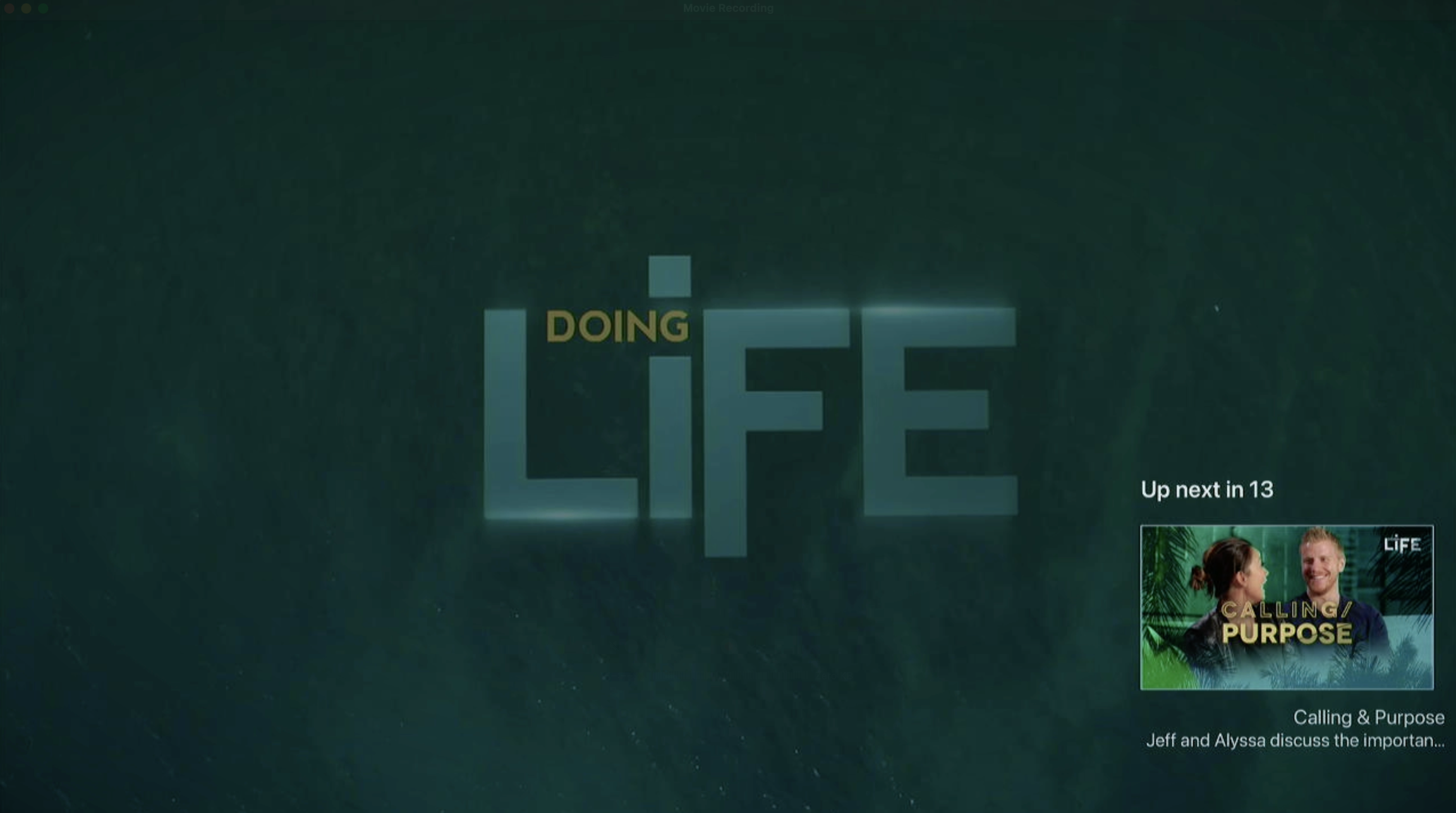
When configured, the Play Next overlay appears during a specified duration at the end of the current video, showing the thumbnail of the upcoming content and a countdown timer. This feature works seamlessly across mobile, tablet, and TV platforms to maintain viewer engagement and provide a continuous viewing experience.
Managing Play Next
To configure the Play Next feature for a video asset:
Navigate to the Media Library in Backstage and locate the video asset you want to configure.
Click on the asset to open it for editing.
In the "Additional Settings" section, locate the "Play Next Time" field.
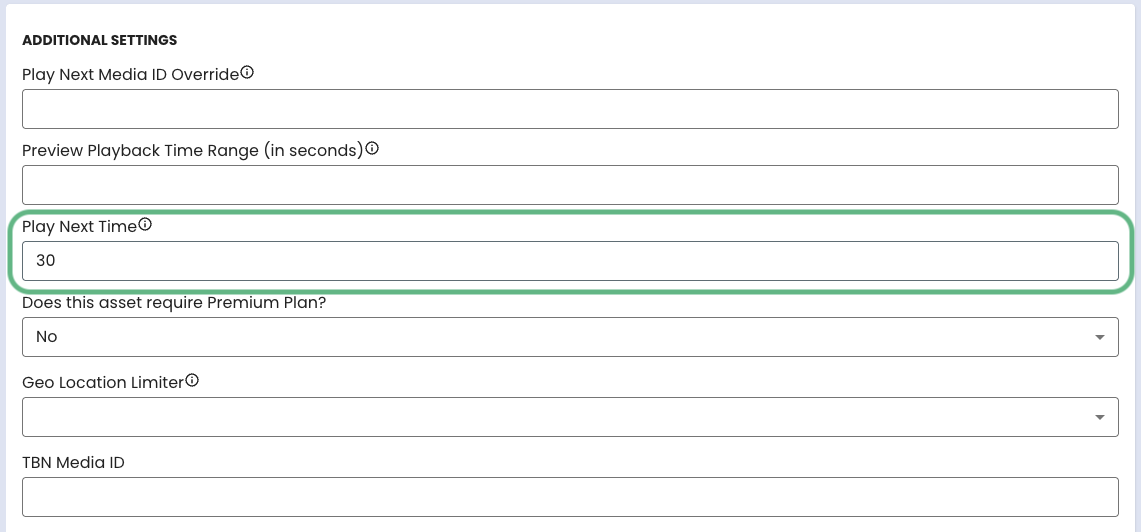
Enter the duration in seconds for how long before the end of the video the Play Next overlay should appear.
Duration Format: Enter the number of seconds as a whole number (e.g., "30" for 30 seconds, "45" for 45 seconds).
NOTE: Play Next Time is 15 seconds by default
Click "Save & Publish" to apply the Play Next configuration to the asset.
Play Next Logic
When a video asset is organized within a playlist, the Play Next feature automatically identifies the next sequential item in that playlist to queue for playback. The Play Next overlay appears during the final moments of the current video (determined by the Play Next Duration setting) and displays a preview of the upcoming content along with a countdown timer. Viewers can interact with the overlay to immediately proceed to the next video, or if no action is taken, the next video will automatically begin playing when the countdown expires.
Example Overlays

Last updated