

Preview Playback
Overview
This feature is used to enable an autoplay preview of an asset using either a time range in the asset itself, or attaching a trailer/teaser in the additional videos section.
Note: Preview Playback does not function for Live Channels
Adding a Preview Time Range to an Asset
When selecting the media type of Video, Episode, or Movie, a field labeled "Preview Playback Time Range Field" appears in the "Additional Settings" section below the basic information.
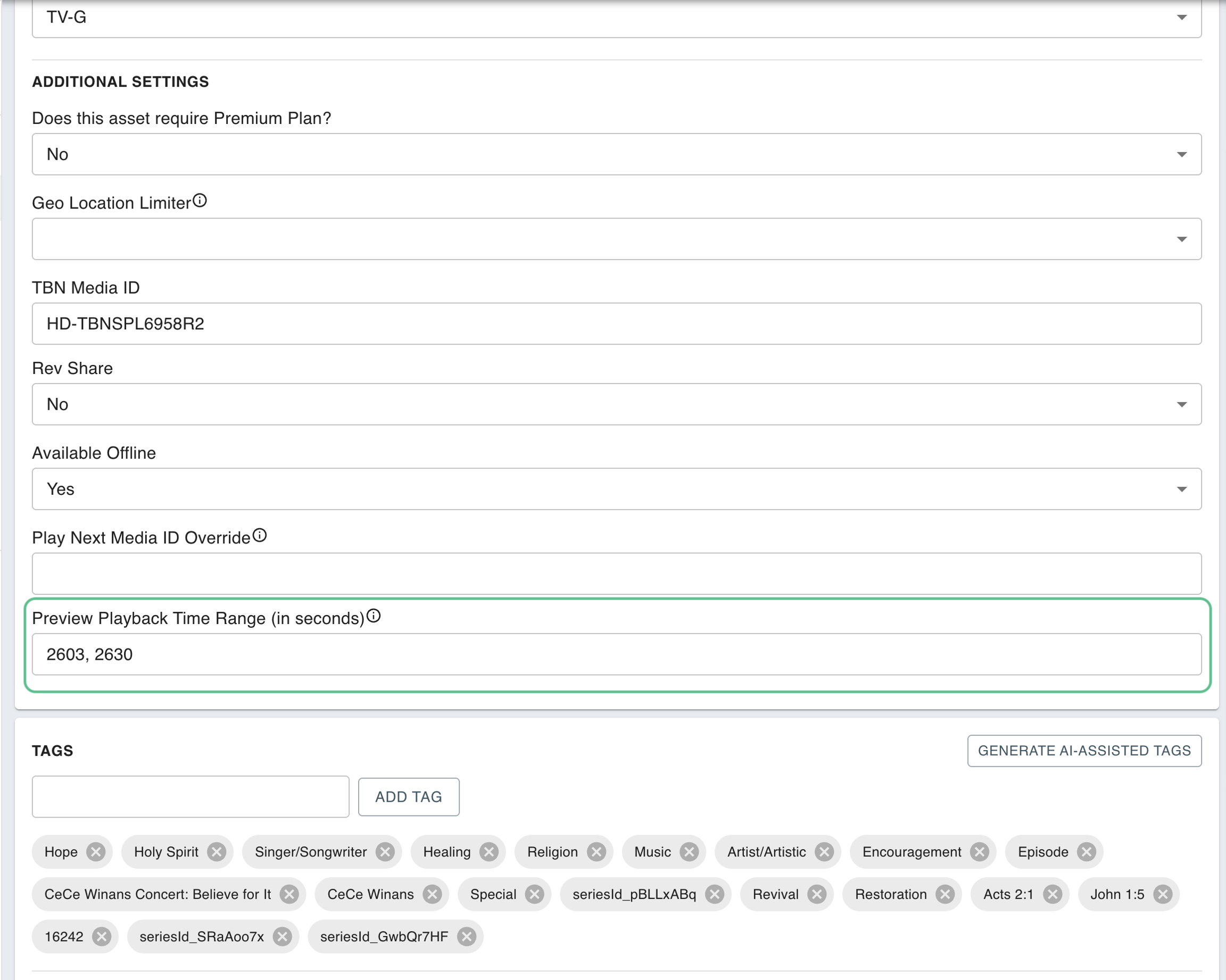
This field allows the user to select a range of time that will autoplay as the user scrolls over the media item in the featured carousel on CTV and Tablet platforms. By default, this field is blank and will only begin playing a preview once a time has been selected
To select a range, ensure you are using the following formatting:
start time in seconds, end time in seconds
For example, "0, 30" would enable a preview of the first 30 seconds of a video. Likewise "860, 890" would enable a preview starting at "14:20" and ending at "14:50"
Adding a Trailer/Teaser to an Asset
When adding a Trailer/Teaser to an asset, the user would need to navigate to the Additional Videos section under the thumbnails.
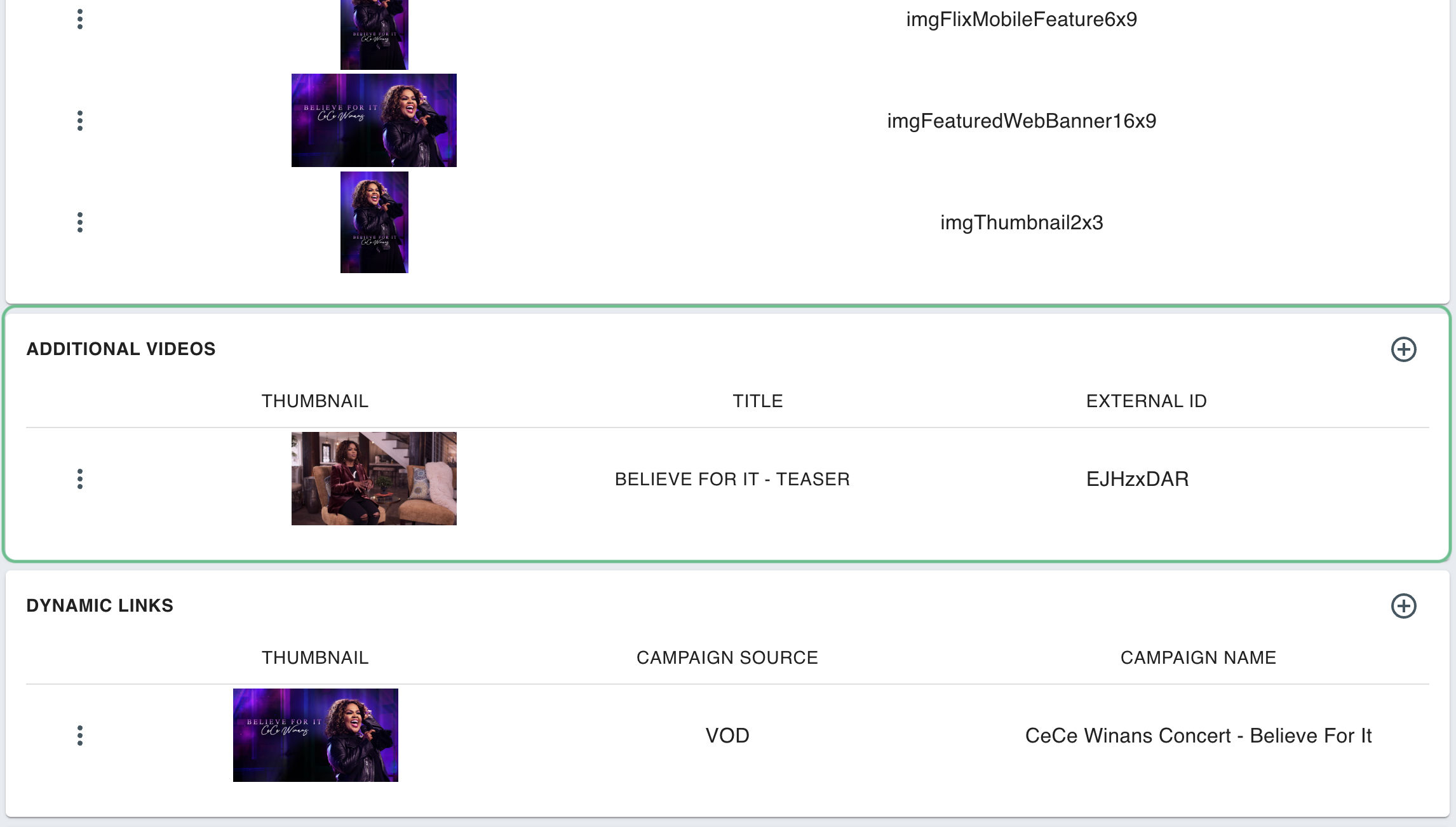
Here you would search for the Trailer/Teaser that you want to add, and this would automatically be set to become the preview for the item that auto plays on the Featured Carousel.
Preview Autoplay Logic
The autoplay feature has logic built in to prevent conflicts between the preview playback video range, and an additional video added as a Trailer/Teaser. Here is a break down of the different options the user has when dealing with Preview Playback. The Preview Playback column shows what will play if a user scrolls over the featured carousel item.
❌
❌
None
✅
❌
Selected Time Range
❌
✅
Trailer Additional Video
✅
✅
Trailer Additional Video
If a time range is not entered and no Trailer/Teaser is added under Additional Video then no Preview Playback will occur.
If a time range is entered and no Trailer/Teaser is added under Additional Video then the Selected Time Range will be played for Preview Playback.
If no time range is entered and a Trailer/Teaser is added under Additional Video then the Trailer/Teaser will be played for Preview Playback.
If a time range is entered and a Trailer/Teaser is added under Additional Video then the Trailer/Teaser will be played for Preview Playback.
In the hierarchy of the Preview Playback logic a Trailer/Teaser is more important than a time range. Meaning that in the use case that a time range is entered AND a Trailer/Teaser is added under Additional Videos the Trailer/Teaser will win out and override the entered time range and the Trailer/Teaser will be played as the Preview Playback.
Last updated